Query Studio
Overview
Query Studio is an embedded, lightweight SQL workbench integrated directly into the Gluesync Control Plane. It acts as an in-product alternative to external database management tools (such as DBeaver, DataGrip, or pgAdmin), allowing developers, database administrators, and sync engineers to inspect, query, and validate synchronized datasets without leaving the Gluesync portal.
By leveraging Gluesync’s pre-existing knowledge of source and target database credentials, Query Studio provides a unified, secure workspace where you can run ad-hoc queries, explore schema hierarchies, inspect execution plans, and run statistics directly against your managed connections.
Key capabilities
-
Multi-tab SQL editor: Keep up to 10 active SQL editors open in a single session, with query scripts and tab configurations persisted locally.
-
Dialect-aware syntax highlighting: Highlighting and auto-complete are tailored dynamically to the specific database engine of the selected agent (e.g., PostgreSQL, Oracle, MySQL, SQL Server).
-
Interactive schema browser: A dynamic tree representation of the database’s schema hierarchy that lets you lazy-load schemas, tables, and columns on demand.
-
Explain plan visualization: Dialect-native
EXPLAINquery analyzer that outputs the physical or logical query execution path in text or hierarchical tree formats. -
Query progress streaming: Real-time progress notifications (started, executing, first row, rows processed) delivered via standard Gluesync WebSocket channels.
-
Secure transaction boundaries: Safeguard production databases using default "Read-only" transaction isolation levels, with toggleable write permissions for authorized administrators.
-
Automatic parameter prompting: Detects and parses positional (
?) or named (:name) query parameters in SQL statements, requesting user input values before execution. -
Query statistics calculation: Computes analytical data statistics (min, max, mean, length, unique values, null count/percentage) on the client side for returned results.
-
Flexible result exporting: Stream or download result sets as standard CSV or JSON, or generate a formatted SQL
INSERTscript targeting custom tables. -
Saved queries & execution history: Store recurring query templates within specific pipeline contexts and track up to 500 query execution records.
-
AI helper & Tab autocomplete: Schema-grounded chat drafts and suffix-only SQL ghost text via Core Hub endpoints; see AI helper and Tab autocomplete.
-
PII labels and masking: Classified columns show a PII tag in the schema tree and result grid. Cell values are masked in results, copies, and exports unless a privileged user unmasks for that session. AI helper and MCP SQL results stay masked. See PII discovery and masking.
UI tour
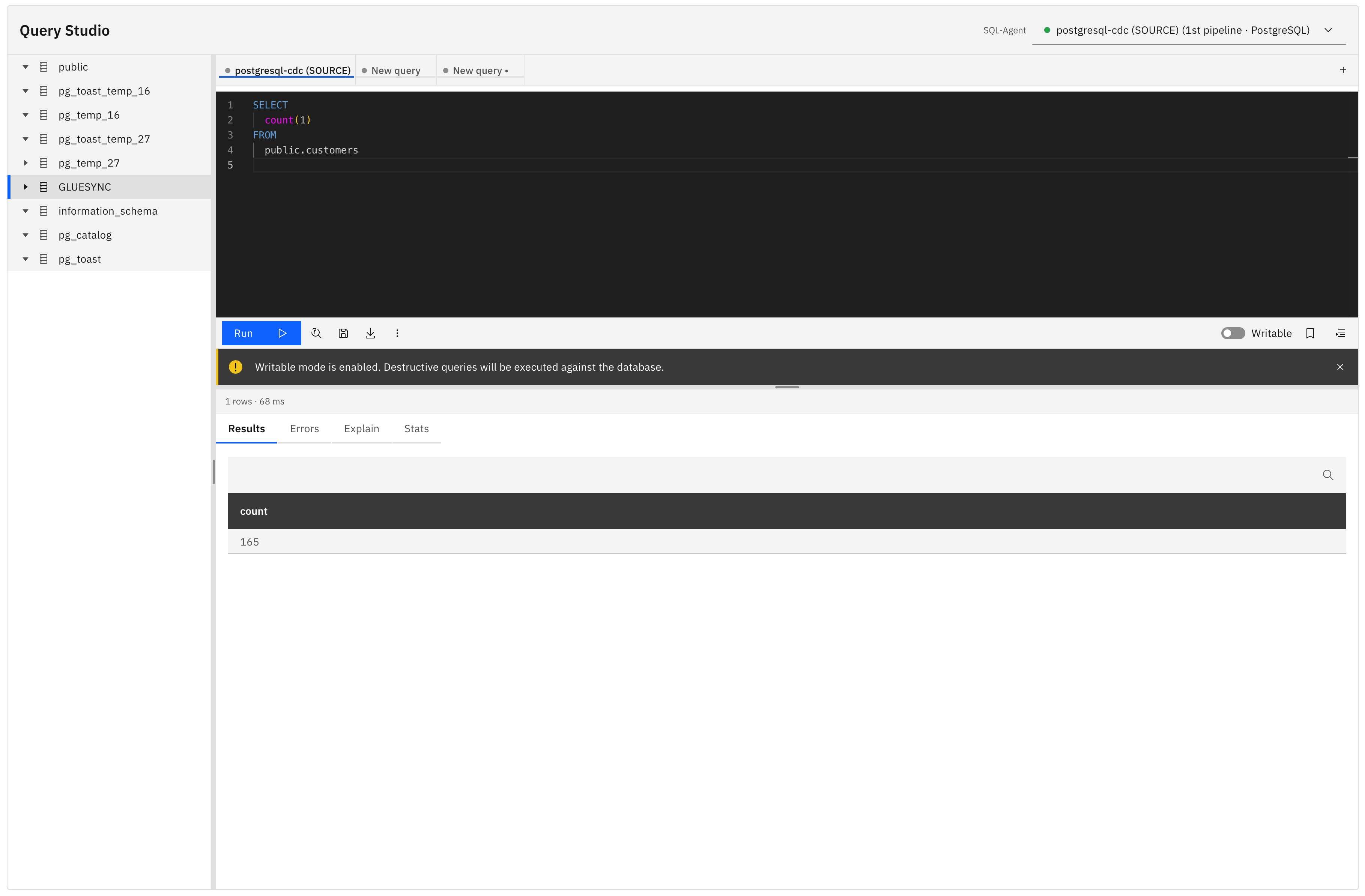
Query Studio is organized into a cohesive three-pane workspace:
-
Connection picker (top bar): Selects the pipeline and agent connection. A dedicated color chip—synced with the pipeline’s metadata color or inferred from environment patterns (Dev, Test, Prod)—provides clear visual context of the active database instance.
-
Schema browser (left panel): Provides hierarchical exploration of the active database connection. You can expand schemas to view tables, and tables to inspect columns along with their data types. Classified columns show a PII tag. The column menu can scan a table or schema for PII, mark a column as PII, or dismiss a false positive.
-
Interactive editor & results (center panel): Contains the multi-tab SQL editor, action toolbar, and result sections. The results pane includes specialized tabs:
-
Results: Interactive data grid displaying query outputs with sortable headers.
-
Errors: Highlights detailed database error messages, warning logs, and line/column error markers.
-
Explain: Visualizes the database-specific execution plan.
-
Stats: Displays client-computed statistics for each returned column.
-
Supported database agents
Query Studio is restricted to SQL-capable database agents. To protect platform performance, NoSQL connectors (such as MongoDB, Cassandra, Redis, Couchbase, or Aerospike) are automatically filtered out from the connection picker.
Query Studio supports dialect-specific optimizations, query formatting, and explain plan parsing for the following 16 database engines:
| Database dialect | Query Studio identifier | Features supported |
|---|---|---|
Amazon Redshift |
|
Autocomplete, Text Explain |
CockroachDB |
|
Autocomplete, Explain Plan tree, Read-only isolation |
Google BigQuery |
|
Autocomplete, Read-only session (Skipped transaction locks) |
IBM Db2 LUW |
|
Autocomplete, Text Explain, Read-only isolation |
Informix |
|
Autocomplete, Read-only isolation |
MariaDB |
|
Autocomplete, DDL viewer, Text Explain, Read-only session |
MS SQL Server |
|
Autocomplete, XML Explain Plan tree, DDL viewer, Read-only isolation |
MySQL |
|
Autocomplete, DDL viewer, Text Explain, |
Oracle Database |
|
Autocomplete, Text Explain, DDL generation, Read-only session |
PostgreSQL |
|
Autocomplete, DDL viewer, JSON Explain Plan tree, |
SAP HANA |
|
Autocomplete, Read-only session |
SingleStore |
|
Autocomplete, Read-only isolation |
Snowflake |
|
Autocomplete, Read-only session, Cost prevention banner |
Sybase ASE |
|
Autocomplete, Read-only isolation |
Vertica |
|
Autocomplete, Read-only session |
YugabyteDB |
|
Autocomplete, Explain Plan tree |
Operational procedures
Executing a query
-
Navigate to Query Studio from the Control Plane left sidebar.
-
In the top bar, select your Pipeline and the associated Agent connection.
-
Write your SQL statement in the active editor tab. Autocomplete will recommend keywords, tables, and column names as you type.
-
(Optional) Highlight a specific statement if you have multiple queries written in the same tab. Query Studio will only execute the highlighted block.
-
Click Run or press
Ctrl/Cmd + Enter. -
If your query contains named (e.g.,
:id) or positional (e.g.,?) parameters, a modal will prompt you to enter values. -
Once executed, the Results tab will populate. The status bar will show the row count and execution duration in milliseconds.
Reviewing execution plans
To analyze query performance and ensure indexes are leveraged correctly:
-
Write your query in the editor.
-
Switch to the Explain tab in the result pane.
-
Click Run or use the shortcut. Query Studio runs a dialect-specific
EXPLAINrequest behind the scenes. -
The plan will render as a visual, nested tree block showing node costs, estimated rows, and scan types (or as the database’s native raw output format, such as MS SQL XML or BigQuery JSON).
Analyzing result statistics
The Stats tab calculates statistics on the client side for the active result set:
-
Numeric columns: Displays Min, Max, Mean, Null Count, Null Percentage, and Total Row Count.
-
String columns: Displays Min Length, Max Length, Unique Value Count (calculated on result sets up to 1,000 rows), Null Count, Null Percentage, and Total Row Count.
-
Temporal/Other columns: Displays Null Count, Null Percentage, and Total Row Count.
Exporting and copying data
-
Export CSV: Downloads the returned result set directly as a
.csvfile. -
Copy as CSV / JSON: Copies the rows directly to your system clipboard.
-
Copy as INSERT: Generates standard SQL
INSERTstatements from the result set. When clicked, a modal prompts you to define the target table name, then places the complete insert script onto your clipboard.
Masked PII columns are omitted or replaced in these copies the same way they appear in the grid. Unmask first (if your role allows it) only when you truly need the original values in a file. See PII discovery and masking.
Saving queries
To store queries for future use:
-
Click Save query (floppy disk icon) on the toolbar or press
Ctrl/Cmd + S. -
Provide a Name and Description.
-
Select the visibility scope:
-
Personal: Only visible to you.
-
Team/Workspace: Shared with all users authorized on the current pipeline.
-
-
Add relevant tags to categorize the query.
-
Click Save. Saved queries can be accessed anytime from the Saved Queries sub-page (
/query-studio/saved).
Scheduling a query with Chronos
From Scheduler, choose the Query Studio action on a schedule, a chained event, a platform event, or a webhook-triggered event. Pick a pipeline, then a saved query (search by name) or Use a custom query. Chronos stores a SQL snapshot; when the job fires it prefers the live saved query from Core Hub and executes through the same Query Studio endpoint as the workbench (120 second timeout). Groups and entities do not apply. Write statements need I acknowledge this query can modify data.
See Query Studio actions for the Control Plane fields, fire-time SQL resolution, and write safeguards.
AI helper and Tab autocomplete
Query Studio can call two dedicated Core Hub AI endpoints for the selected pipeline agent:
-
Chat helper — schema-grounded guidance and an optional SQL draft. It does not require an AI Studio Agent.
-
Tab completion — low-latency ghost text at the editor cursor.
Both reuse the bring-your-own (BYO) LLM provider vault administered under Settings → LLM providers (same vault as AI Studio). When the vault is empty, the API returns HTTP 400 with a message that Query Studio AI requires at least one LLM provider configured by a SUPER_ADMIN.
Control Plane interface
-
Launcher — a 52 px circular floating action button in Carbon blue (
#0f62fe) carrying the white Knowledge Agent chat-bubble icon, anchored to the bottom-right corner of the Query Studio SQL editor. While the panel is open the FAB swaps to the Knowledge Agent close icon. Its accessible label toggles betweenOpen Query Studio AI helperandClose Query Studio AI helper. -
Panel — opening the launcher expands a wide, low chat panel horizontally over the editor, with Core Hub Carbon
2pxradius. The panel sits to the left of the launcher, which stays the bottom-right anchor. Panel title Query Studio AI helper, subtitle Describe the data you need and review the proposed SQL. -
Composer — an Ask Query Studio AI field with the placeholder
Ask where data lives or describe a query…, sent with Send to AI helper. -
Accepting a draft — the tertiary Insert into editor button applies the returned
proposedSqlthrough a Monaco edit: it replaces the current selection if there is one, otherwise it inserts at the cursor. The change is a normal editor mutation (undo/redo still apply). It never overwrites the whole buffer and never executes the statement; running it afterwards goes through the normal read-only / SafetyGate path. -
Tab completion — the suffix-only ghost hint is rendered at the cursor.
Tabaccepts it andEscdismisses it. It is additive and does not replace Query Studio’s existing discovery-backed autocomplete. -
Empty provider vault — the panel shows its empty state only when Core Hub signals a missing or empty vault (an explicit provider-configuration code, or Hub’s wording that a
SUPER_ADMINmust configure a provider). Other HTTP400responses stay ordinary errors and do not trigger it. The empty state is role-aware:-
Roles that can open the LLM providers tab (
SUPER_ADMINandMANAGER) getConnect an LLM provider to use Query Studio AI.with an Open LLM provider settings action that deep-links to Settings → LLM providers (settingsTab=llmProviders). -
Roles that cannot open that tab (for example
VIEWER) getAn LLM provider is not configured. Ask a SUPER_ADMIN to configure LLM providers.with no settings button, so nobody is offered a control they cannot use.
Opening the tab is not the same as administering the vault. Vault CRUD (add, edit, remove providers) remains
SUPER_ADMIN-only. AMANAGERcan open Settings → LLM providers but cannot change the vault. -
Prerequisites and auth
-
Caller must send a Bearer token.
-
Caller needs Query Studio read permission (
canRunQueryReadOnly). -
Optional
providerIdselects a configured vault provider. If omitted, chat keeps the conversation’s previous provider when present; otherwise Core Hub uses the first configured provider (ordered by name). Completion follows the same provider resolution whenproviderIdis omitted (no conversation binding). -
Usage and lightweight audit events reuse AI Studio storage. These endpoints do not execute generated SQL.
Chat helper
POST /query-studio/pipelines/{pipelineId}/agents/{agentId}/ai/chat
Request body:
{
  "message": "Help me retrieve the latest orders with out-of-stock items",
  "conversationId": null,
  "editorSql": "SELECT * FROM orders",
  "selection": null,
  "providerId": null
}| Field | Notes |
|---|---|
|
Required. User prompt (1..32000 characters). |
|
Optional. Continue an existing chat for this Query Studio agent; omit to start a new conversation. |
|
Optional. Current editor SQL for grounding (max 100000 characters). |
|
Optional. Selected editor text (max 16000 characters). |
|
Optional. Vault provider id. See provider resolution above. |
Example response:
{
  "conversationId": "uuid",
  "message": "Use orders and order_items...",
  "proposedSql": "SELECT ...",
  "citations": [{ "schema": "public", "table": "orders" }]
}| Field | Notes |
|---|---|
|
Conversation id for follow-up turns. |
|
Assistant explanation (never claims the query was executed). |
|
Optional read-only SQL draft extracted from the assistant reply. Never executed by this endpoint. |
|
Optional list of |
Typical HTTP outcomes: 200 success; 400 invalid request or no LLM provider configured; 403 missing/invalid Bearer or missing Query Studio read permission; 404 agent or conversation not found; 422 LLM provider failure.
Tab completion
POST /query-studio/pipelines/{pipelineId}/agents/{agentId}/ai/complete
Request body:
{
  "sql": "SELECT o.id FROM orders o WHERE ",
  "cursorOffset": 32,
  "maxTokens": 64,
  "schemaSummary": "public.orders (id bigint PK, status varchar)",
  "providerId": null
}| Field | Notes |
|---|---|
|
Required. Full editor buffer (max 100000 characters). |
|
Required. Zero-based character offset in |
|
Optional. Default |
|
Optional. Bounded summary from the UI’s cached discovery metadata (max 24000 characters). Sending it avoids schema discovery on every Tab request. If omitted, Core Hub builds bounded context from existing schema/table/column discovery APIs. |
|
Optional. Vault provider id. |
Example response:
{
  "completion": "o.status = 'OPEN'",
  "replaceFrom": 32,
  "replaceTo": 32
}| Field | Notes |
|---|---|
|
Suffix-only ghost text to insert. Not a chat reply. |
|
Inclusive zero-based replacement offset. Currently equals |
|
Exclusive zero-based replacement offset. Currently equals |
Typical HTTP outcomes: 200 success; 400 invalid cursor, token limit, schema summary, or missing LLM provider; 403 missing/invalid Bearer or missing Query Studio read permission; 404 agent not found; 422 LLM provider failure.
Safety model
-
Endpoints return drafts and ghost text only. They never execute SQL.
-
Prompts instruct the model to suggest read-only SQL (
SELECT,WITH,SHOW,DESCRIBE,EXPLAIN, orVALUES) and not DDL/DML or mutating operations. This is a soft prompt restriction: Core Hub does not server-validate thatproposedSqlorcompletionis SELECT-only. -
No Core Hub MCP catalogs or secret stores are duplicated for these calls.
-
Classified PII cells are never sent to the model. Schema context includes PII tags, not raw values. If the helper runs SQL through Core Hub,
unmaskPiiis forced off. Prefer the suggested Scan this schema for hidden PII prompt (classify_table/classify_schema) instead ofSELECT *when looking for sensitive columns. See PII discovery and masking.
Related
-
Settings → LLM providers — BYO LLM provider vault shared with AI Studio. Setup (including Ollama) lives in AI models and LLM providers. Agent builder and Connect hosted-chat policy live in AI Studio; do not duplicate them here.
-
Executed-statement RBAC and
QUERY_STUDIO_AUDITbehaviour remain under Security, permissions, and auditing; AI draft endpoints never write to the database.
Security, permissions, and auditing
Because direct SQL access is a sensitive capability, Gluesync applies strict protection mechanisms on database sessions, user operations, and audits.
Role-based access control (RBAC)
Access to Query Studio is controlled by a robust permission matrix. Permissions are verified both at the UI layer and at the API route layer:
| Role | read-only queries | Writable queries | Manage personal saved queries | Share saved queries | View query audit logs | Unmask PII in results |
|---|---|---|---|---|---|---|
|
✅ Allowed |
✅ Allowed |
✅ Allowed |
✅ Allowed |
✅ Allowed |
✅ Allowed |
|
✅ Allowed |
✅ Allowed |
✅ Allowed |
✅ Allowed |
❌ Restricted |
✅ Allowed |
|
✅ Allowed |
❌ Restricted |
✅ Allowed |
❌ Restricted |
❌ Restricted |
❌ Restricted |
|
❌ Restricted |
❌ Restricted |
❌ Restricted |
❌ Restricted |
❌ Restricted |
❌ Restricted |
Connection isolation & pool management
-
Dedicated pool: Query Studio creates a separate, isolated read-only HikariCP connection pool (keyed as
qs-[agentId]) distinct from Gluesync’s CDC replication pool. This prevents ad-hoc user queries from starving thread pools or delaying active synchronizations. -
Auto-eviction: Idle connection pools are automatically evicted and closed after 5 minutes of inactivity to release database resources.
-
Connection caps: Pools default to a maximum size of 3 active connections and a minimum of 1 connection.
Destructive query safeguards
-
Read-only toggle: The toolbar contains a Read-only toggle. When active (default), Query Studio starts transactions with database-level read-only configurations (e.g.,
SET TRANSACTION READ ONLY) to intercept and reject statements likeDROP,DELETE, orUPDATE. -
Writable mode requirements: Disabling the Read-only toggle (enabling writable access) is restricted to users with
canRunQueryWritablecapabilities (SUPER_ADMINorMANAGER). Destructive operations executed in this mode will be run directly against the database, triggering a prominent warning notification in the UI.
Query auditing
Every statement executed in Query Studio is logged to the QUERY_STUDIO_AUDIT schema. The database audit records:
-
The authenticated user’s identity (OIDC subject or local email).
-
The targeted agent and pipeline identifiers.
-
A SHA-256 hash of the complete SQL text.
-
A truncated 200-character SQL text preview.
-
Read-only status, execution status (completed, error, cancelled, timeout).
-
Execution timestamps, duration (in milliseconds), and row count.
Audit records are retained for 90 days by default, and can only be queried or viewed by users possessing SUPER_ADMIN privileges.
Working with large datasets
To avoid memory exhaustion (OOM) on both the Gluesync Core Hub JVM and the user’s browser, Query Studio implements several data mitigation policies:
-
Hard row limit: The backend enforces a server-side cap (defaulting to 10,000 rows) for all executed queries. If the database returns more rows than the limit, the server truncates the result set, flags the response as
truncated, and shows a warning in the UI. -
Client-side page size: The result grid defaults to 200 rows, allowing smooth DOM rendering. Users can configure the page size up to 5,000 rows.
-
Virtualized grid: The result data grid is virtualized using
react-window, rendering only the visible viewport. This enables scrolling performance at 60 fps even when displaying large datasets.
Troubleshooting
Tables or schemas are missing from the tree
-
Cause: The database connection parameters might restrict schema access, or schema filters are applied in the agent configuration.
-
Resolution: Verify database user privileges. You can also trigger a manual refresh on the Schema Browser to force a metadata synchronization.
Query fails with a timeout error
-
Cause: The statement is scanning a large unindexed table, or the database is under heavy load. The default Query Studio client timeout is 30 seconds.
-
Resolution: Use the Explain panel to check the query path. Avoid scanning massive tables without selective
WHEREclauses.
Best practices
-
Default to Read-only: Keep writable mode disabled unless performing planned database maintenance or debug corrections.
-
Use parameter binding: Leverage named parameters (
:value) rather than hardcoding constants. This makes query templates reusable and allows saving them for your team. -
Optimize Snowflake / BigQuery scans: Be cautious when querying metered analytical data warehouses. Running broad
SELECT *scans can incur significant infrastructure query costs. Use narrowWHEREfilters and strictLIMITclauses. -
Validate mappings locally first: When verifying pipeline sync values, start with a small, specific key lookup before querying general table counts.
-
Treat PII as masked by default: Keep PII visible off unless you need original values. Scan or mark columns before sharing a result set or asking the AI helper about a table. See PII discovery and masking.
scheduler-module JWT, not this ordinary external-module Query Studio role.