Logging
Collect and send logs to MOLO17 support
If you have an open support ticket, you can use the collect-logs utility to collect and package logs from your Gluesync deployment. This utility can be invoked from within the Gluesync Control Plane, and it can be used to collect logs from any Gluesync deployment.
To access the Collect and send logs utility go to Settings → Support → Collect and send logs.
The collect-logs utility offers two modes of operation depending on whether the Conductor (modules manager) is available in your deployment:
-
With Conductor: the full environment logs collection is available, allowing you to gather logs, statistics, and metrics from all connected modules in a single operation.
-
Without Conductor: the utility falls back to CoreHub’s internal API to archive and upload logs directly from the CoreHub instance.
Export and upload logs to support
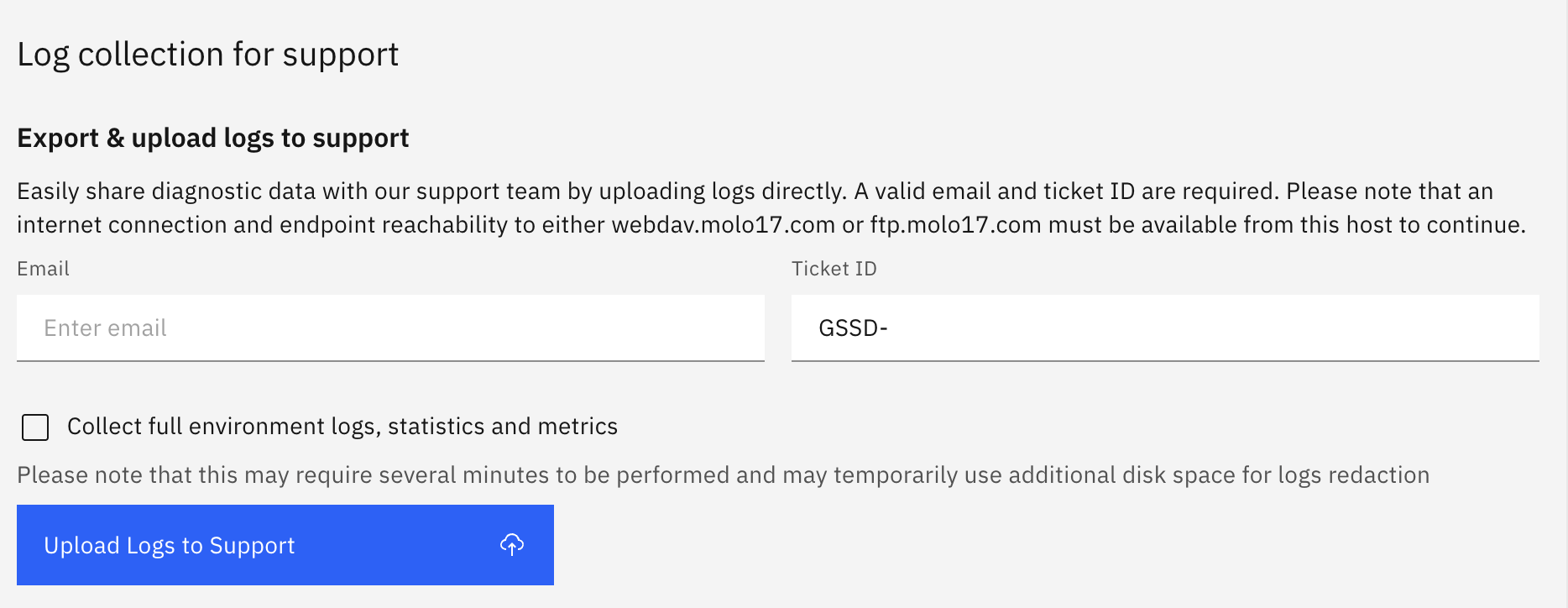
The Export & upload logs to support section allows you to share diagnostic data with the MOLO17 support team by uploading logs directly from the Control Plane UI.
To use this feature, you need to provide:
-
Email: the email address you provided when opening the support ticket.
-
Ticket ID: a support ticket identifier in the format
GSSD-followed by digits only (for example,GSSD-123).
An internet connection and endpoint reachability to either webdav.molo17.com or ftp.molo17.com must be available from the host running the Gluesync Control Plane to use the upload functionality.
|
When the Conductor is available, an additional checkbox is displayed:
-
Collect full environment logs, statistics and metrics: when enabled, the collection will gather logs from all modules connected to the Conductor. Please note that this may require several minutes to complete and may temporarily use additional disk space for logs redaction.
Depending on the Conductor availability and the selected options, the following buttons are available:
-
Collect & Upload Logs: shown when the Conductor is available and the full environment logs option is enabled. This performs a complete collection and upload in a single operation.
-
Upload Logs to Support: shown in all other cases. This first archives the logs locally via the CoreHub API and then uploads the resulting archive to MOLO17 support.
| If the Gluesync Control Plane is not available or the UI is unreachable, you can still collect and send logs using the command-line scripts included in the Gluesync Kit. See Exporting / Uploading logs to support for details. |
Collect logs locally
If your environment does not have external internet access, you can use the Collect Local feature to download a compressed archive of diagnostic logs directly to your machine. No email or ticket ID is required for this operation.
The local collection section provides the following option:
-
Include database: when enabled, the archive will also include a snapshot of the CoreHub database alongside the log files.
Once the archiving is complete, a download link will be displayed showing the name of the generated archive file. Click the link to download the archive to your local machine.

Set the logging level
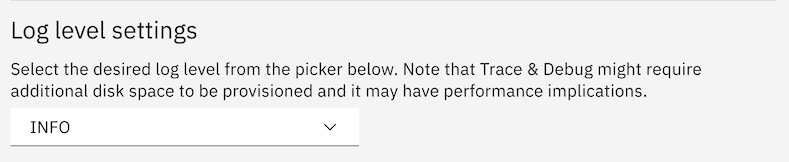
The logging level can be customized directly from the UI by navigating to Settings → Support → Change logging level and selecting the desired setting from: info, debug, trace, error.
Log retention settings
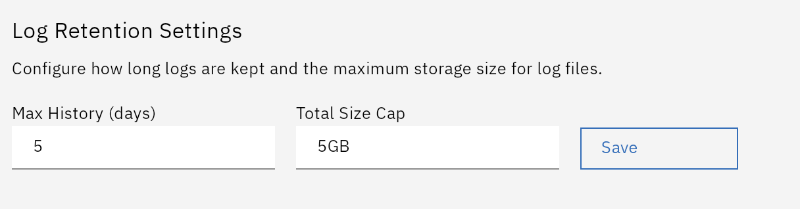
You can easily configure how long logs are kept and the maximum storage size for log files directly from the Control Plane UI.
To access these settings, navigate to Settings → Support and scroll down to the Log Retention Settings section. From here, you can define:
-
Max History (days): The maximum number of days to retain log files before they are automatically deleted (for example, 5).
-
Total Size Cap: The maximum total storage size allowed for all log files combined (for example, 5GB).
Once you have entered your desired values, click the Save button to apply the new retention policy to your deployment.
Enable remote logs collection (telemetry)
The remote logs collection feature can be enabled directly from the UI by navigating to Settings → Support → Enable remote logs collection and selecting the desired setting from: enabled, disabled.
Remote logs collection is a feature that allows Gluesync to collect logs from your deployment and send them to MOLO17. This allows us to futher improve the platform and provide you with a better, pro-active support.
Note that remote logs collection is disabled by default, and when turned on it only send ERROR level logs to MOLO17.
Logs are sent anonymously and securely using Logstash (TCP under TLS) to MOLO17’s servers.

Default log file
Gluesync by default logs its status in the system’s output console as well to a file within the following folder /var/log/gluesync/archived/gluesync.XXX.log where XXX is the file date (plus its incremental counter) used for logs rotation. This process can be customized by tweaking the logging configuration file according to the logback’s framework documentation available at: http://logback.qos.ch/documentation.html. This lets the user have great control under the hood and wider flexibility to decide which logs you want to collect (also for GDPR purposes) and where they should be stored.
You can download a sample logback.xml configuration file to get started with custom logging configuration.
To provide Gluesync with a custom Logback configuration file, you need to set the actual file path into an environment variable called LOG_CONFIG_FILE similar to what you’re used to doing for both the license and configuration file. Once set, Gluesync will override its default log settings and use the provided ones.
LOG_CONFIG_FILE=/path/to/logback.xmlBelow you can find the default configuration file used by our professional services. You can also download this logback.xml file directly.
<?xml version="1.0" encoding="UTF-8"?>
<included>

    <appender name="CONSOLE" class="ch.qos.logback.core.ConsoleAppender">
        <encoder>
            <pattern>
                %d{yyyy-MM-dd'T'HH:mm:ss.SSS} [%t] %c{0} %p - %msg%n
            </pattern>
        </encoder>
    </appender>

    <appender name="FILE" class="ch.qos.logback.core.rolling.RollingFileAppender">
       <file>/opt/gluesync/logs/${JAR_NAME:-gluesync}.log</file>
       <rollingPolicy class="ch.qos.logback.core.rolling.SizeAndTimeBasedRollingPolicy">
           <fileNamePattern>/opt/gluesync/logs/archived/${JAR_NAME:-gluesync}.%d{yyyy-MM-dd}.%i.log</fileNamePattern>
           <!-- each archived file, size max 100MB -->
           <maxFileSize>100MB</maxFileSize>
           <!-- total size of all archive files, if total size > 1GB, it will delete old archived file -->
           <totalSizeCap>1GB</totalSizeCap>
           <!-- 5 days to keep -->
           <maxHistory>5</maxHistory>
       </rollingPolicy>
       <encoder>
           <pattern>%d{yyyy-MM-dd'T'HH:mm:ss.SSS} %c{1} %p %m%n</pattern>
       </encoder>
   </appender>

    <logger name="com.molo17.gluesync" level="DEBUG" additivity="false">
        <appender-ref ref="CONSOLE"/>
        <appender-ref ref="FILE"/>
    </logger>

</included>
Customize logs time zone
By default, Gluesync takes its time zone by the host operating system. In the case of containerized environments, Gluesync can be told to change that behavior by passing to the container orchestrator a different time zone.
Here we’re providing an example of how you can pass a different value in a docker-compose environment:
environment:
    - TYPE=source #example of other environment variables
    - LOG_CONFIG_FILE=/opt/gluesync/shared/logback.xml #example of other environment variables
- TZ=Asia/Bangkok # <--- this is the time zone you want to set-
TZ: is key that you will need to customize by issuing a value ofRegion/City.
Exporting logs
Use the scripts included in the Gluesync Kit to collect and package logs (collect-logs.sh on Linux/macOS, collect-logs.ps1 on Windows).
To read more you can check out our dedicated section here.