SMTP configuration
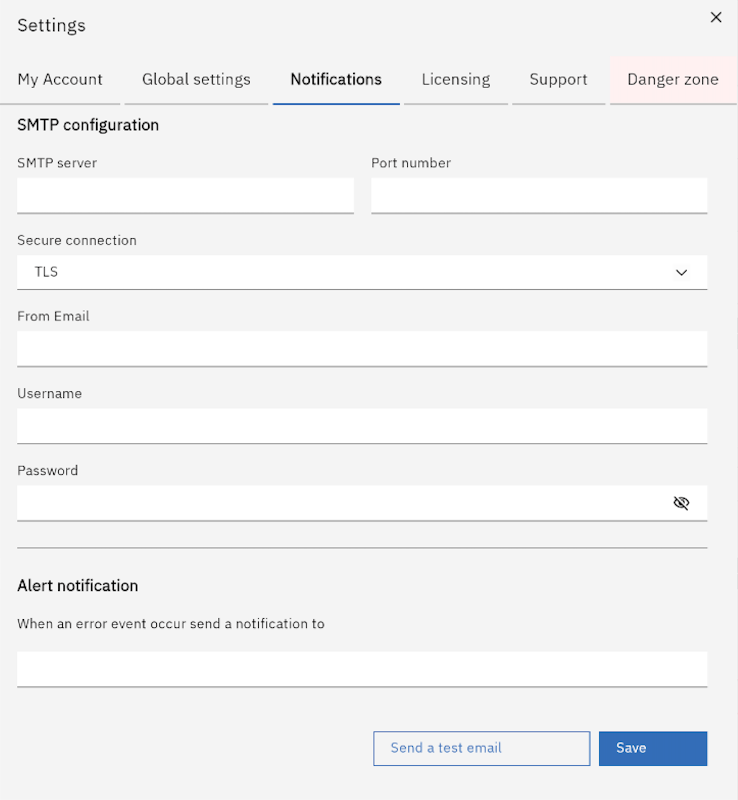
The SMTP configuration interface lets you set up an outgoing mail server so Gluesync can deliver real-time email notifications for system events. This replaces the need for manual XML configuration in the logging framework and offers granular filtering, burst prevention, and object scoping.
Accessing the email settings
-
In the top-left header of the Control Plane, click your User profile.
-
Select Settings from the menu.
-
Navigate to the Notifications tab.
-
Select the Emails sub-tab.
SMTP connection
Enter the connection details provided by your email service provider:
| Field | Description |
|---|---|
SMTP server |
The hostname or IP address of your mail server (e.g., |
Port number |
The port used for outgoing mail. Common values are |
Secure connection |
The encryption protocol required by your provider. Choose |
From email |
The address that appears as the sender of alert emails. |
Username |
The account name used to authenticate with the SMTP server. |
Password |
The password for the specified SMTP account. The field uses hidden input for security. |
Events and severities
Decide which events trigger an email and how severe they must be.
-
Alert email — The destination address that receives notifications.
-
Enabled events — Multi-select list of all event types the platform can emit. Leave empty to subscribe to all events, or pick specific ones (for example, only
PIPELINE_ERRORandAGENT_UNHEALTHY). -
Severity filter — Multi-select list (
CRITICAL,WARNING,INFO). Leave empty to receive events of any severity, or restrict toCRITICALandWARNINGto reduce noise.
If you want high-priority alerts only, set the severity filter to CRITICAL and WARNING and select just a handful of event types.
|
Burst prevention
To avoid flooding the alert inbox during widespread failures, Gluesync can batch events within a sliding window.
| Field | Description |
|---|---|
Enable burst prevention |
Toggle on to activate rate-limiting. |
Window (minutes) |
The sliding window duration. Events arriving inside this window are collected into a single digest email. |
Max events per email |
The maximum number of distinct events included in one digest. Once the limit is reached, a new email is started even if the window has not closed. |
Burst prevention is enabled by default with a 5-minute window and a maximum of 20 events per email.
Object filters
Restrict email notifications to specific pipelines, groups, or entities. This is useful when different teams own different data flows and each team only wants alerts for their own scope.
| Field | Description |
|---|---|
Pipeline |
Select one or more pipelines. Only events originating from the chosen pipelines trigger emails. |
Group |
Select one or more groups. The list is automatically narrowed when pipelines are selected. |
Entity |
Select one or more entities. The list is automatically narrowed when pipelines are selected. |
Leave all three filters empty to receive events from every pipeline, group, and entity in the system.
Testing and saving
Before saving, verify the configuration end-to-end:
-
Click Send test email at the bottom of the form.
-
Confirm the test message arrives in the alert email inbox.
-
Click Save to apply the settings.
Once saved, Gluesync begins routing matching events immediately without requiring a restart.