Search docs.molo17.com
    A newer version of this documentation is available.
    View Latest (v2.3)

    Notifications and alerts

    Notifications and alerts (shown as Notifications hub in the Control Plane UI) is your central place to monitor system notifications, track errors, and stay informed about the status of your Gluesync operations. Regularly checking Notifications and alerts helps you stay on top of any issues that may require your attention.

    Accessing Notifications

    View Recent Notifications

    • Locate the bell icon in the top-right corner of the Gluesync interface.

    Bell Icon
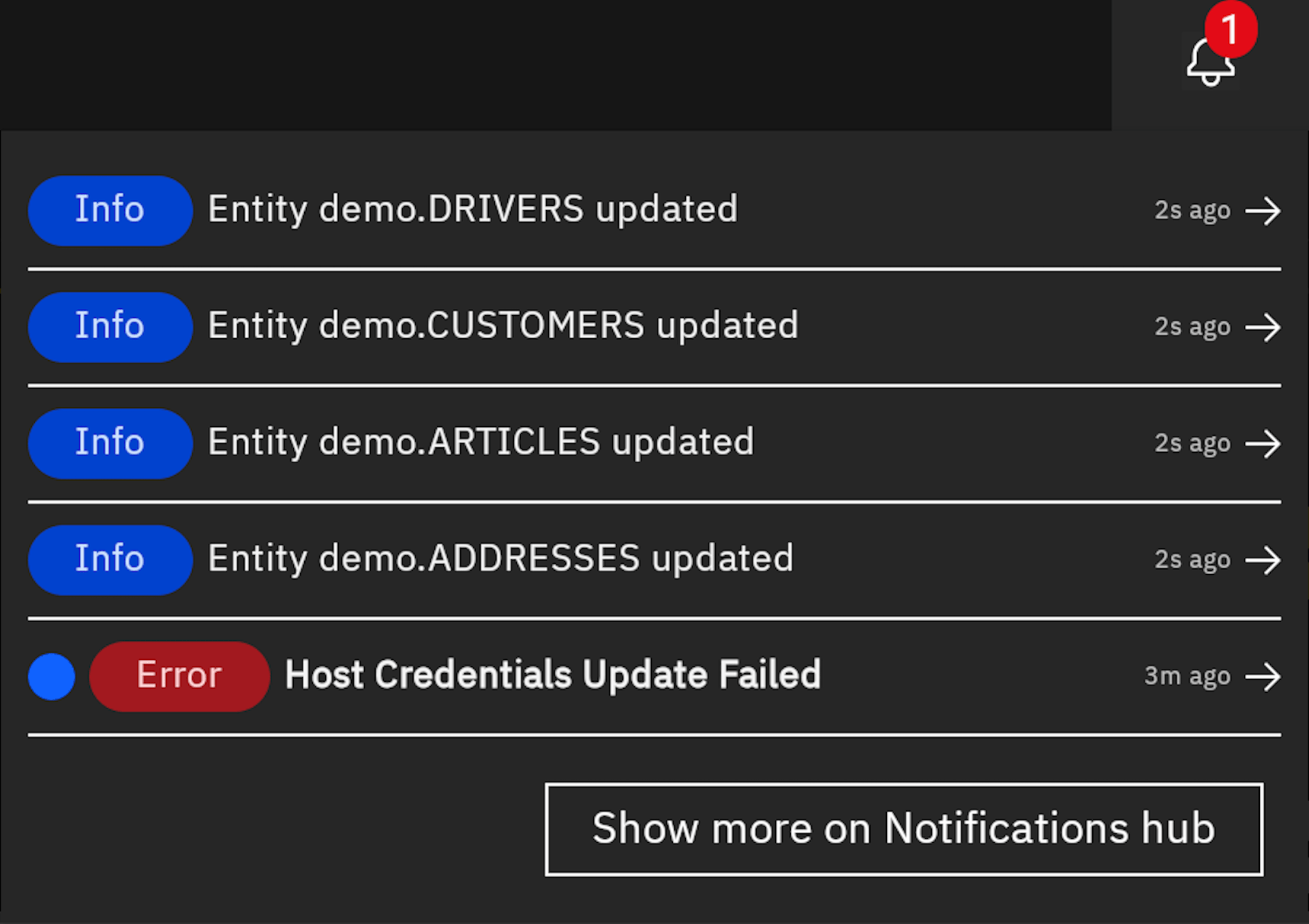
    • Click the bell icon to view your most recent notifications.

    • The dropdown will show a summary of recent notifications, including any errors or important system messages.

    Recent Notifications

    Access Notifications and alerts

    To view your complete notification history and access advanced filtering options:

    1. Click the bell icon in the top-right corner.

    2. Select Show more on Notifications Hub at the bottom of the notifications dropdown.

    Filtering Notifications

    Notifications and alerts provides powerful filtering capabilities to help you find specific notifications:

    1. In Notifications and alerts, locate the search and filter panel.

    2. You can filter notifications by:

      • Date range (From date and To date)

      • Pipeline(s)

      • Agent(s)

      • Group(s)

      • Entity/Entities

      • Notification type (Error, Information, Warning)

    3. Click the Search button to apply your filters.
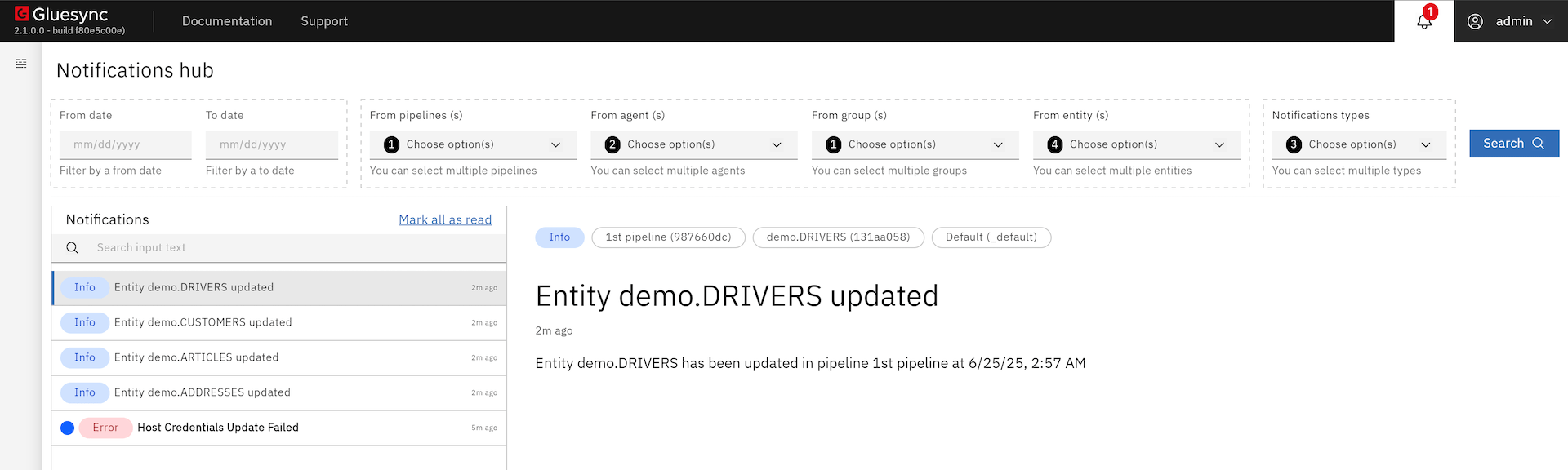
    Notifications and alerts page

    Understanding Notification Types

    • Errors: Indicate critical issues that require immediate attention.

    • Warnings: Highlight potential issues that might need monitoring.

    • Information: Provide status updates and system messages.

    Best Practices

    • Check Notifications and alerts regularly to stay informed about your system’s health.

    • Use filters to focus on specific areas of interest when troubleshooting.

    • Clear resolved notifications to keep your workspace organized.